.png&w=96&q=75)


 191
191
Tired of juggling tabs and manually entering data? OpenAI’s ChatGPT Atlas, launched on October 21, 2025, is here to streamline customer support workflows by embedding AI directly into your browser. With features like a persistent sidebar, multilingual support, and task automation, Atlas simplifies repetitive tasks and reduces errors.
Key Features:
- Persistent Sidebar: Provides context-aware AI assistance without switching tabs.
- Agent Mode: Automates multi-step tasks with an AI Agent for Customer Service, cutting admin work by up to 40%.
- Browser Memory: An opt-in feature that remembers key details across sessions for faster responses.
- Integration: Works seamlessly with tools like Zendesk, Salesforce, and Slack.
- Languages: Supports over 40 languages with instant translation and tone adjustments.
- Security: Offers enterprise-grade controls, incognito mode, and ensures customer data isn’t used for AI training.
Atlas Browser enhances productivity by integrating real-time AI assistance into your workflow, helping you draft responses, fill forms, and manage tickets efficiently - all while maintaining robust data security. Whether you’re managing customer tickets or looking to save time, Atlas is designed to help support teams work smarter, not harder.
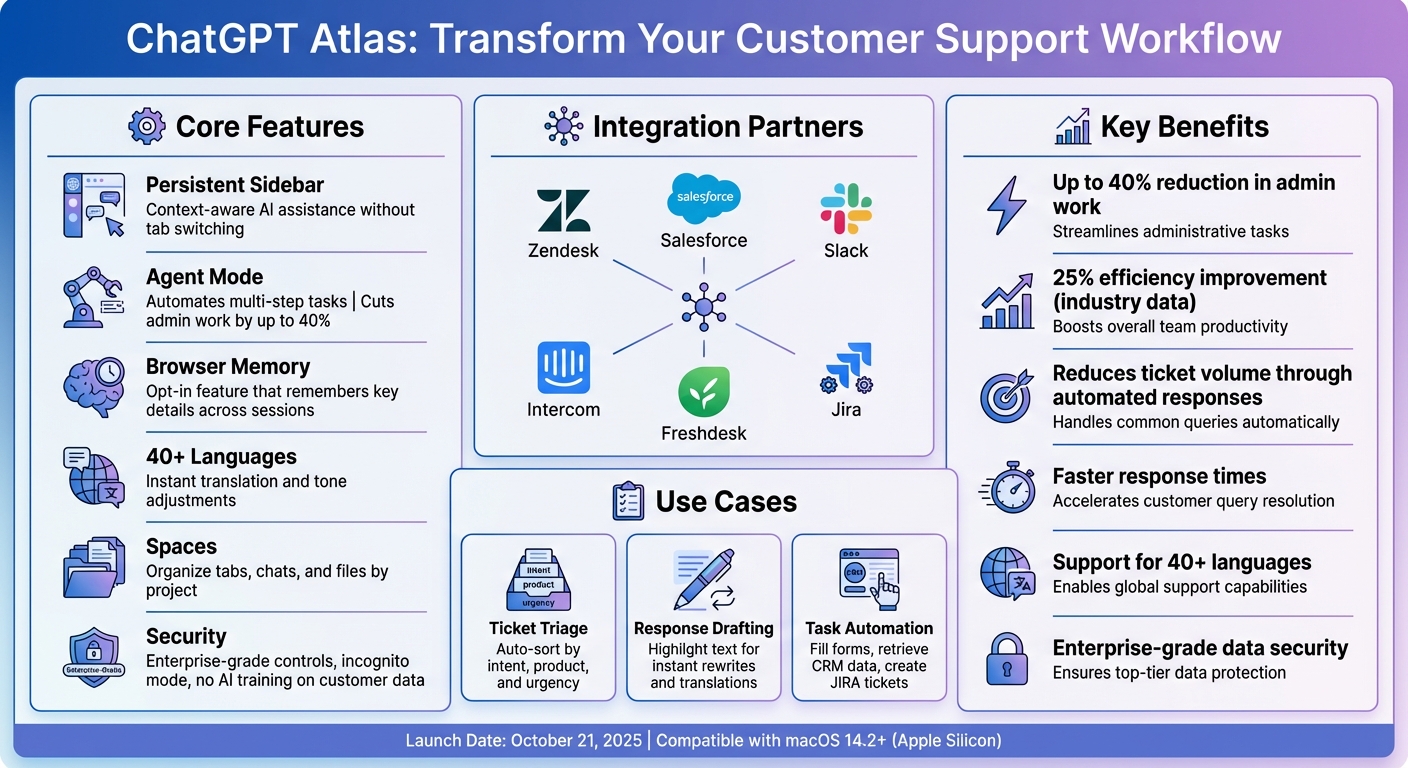
ChatGPT Atlas Key Features and Benefits for Customer Support Teams
Master ChatGPT Atlas in One Video
sbb-itb-97114f1
ChatGPT Atlas Features for Customer Support
Atlas is designed to simplify the lives of support teams by addressing common challenges like tab overload and repetitive manual tasks. With AI built right into your browser, it brings powerful tools to streamline workflows and enhance productivity.
Custom AI Models for Your Support Content
One standout feature is Browser Memory, an opt-in tool that remembers key information from sites you visit, such as internal knowledge bases or product documentation. This means the AI retains context across sessions, so when agents return, it's already prepared with the details they need. OpenAI describes it like this:
Browser memories let ChatGPT remember context from the sites you visit and bring that context back when you need it.
Another helpful tool is Spaces, which allows teams to organize their work into project-specific hubs. Each Space can group tabs, chats, notes, and files for easy access. For example, a team managing billing inquiries might create a Space dedicated to billing resources, keeping everything in one place. Agents can toggle between personal and professional workspaces, with each maintaining its own settings and history. This ensures that business tasks stay organized and separate from personal browsing.
Support for 40+ Languages
Atlas makes multilingual support effortless. Agents can highlight customer messages to get instant translations or rewrites, adjusting tone or simplifying technical terms in real time. The AI can also decode idioms, technical jargon, or regional expressions, ensuring agents fully understand the context of a request - even in unfamiliar markets.
Browser Memory enhances this capability by storing regional language preferences and brand-specific writing guidelines, helping teams deliver consistent responses across global markets. According to recent industry data, organizations using AI for support have seen efficiency improvements of up to 25%.
Connecting with Your Current Support Tools
Atlas integrates directly with popular platforms like Zendesk, Salesforce, and Slack through its persistent sidebar. This feature keeps the AI accessible alongside your support tools, allowing it to summarize tickets, analyze customer data, and draft replies - all without switching tabs. Yogya Kalra shared their experience:
Now ChatGPT instantly understands what I'm looking at, helping me improve my knowledge checks as I go.
With just one click, agents can use ChatGPT to rewrite, translate, or adjust the tone of customer responses directly in any text field. For enterprise users, Atlas supports managed preferences via MDM (Mobile Device Management), giving administrators control over extensions, password managers, and security settings. OpenAI also ensures that content browsed in Business or Enterprise workspaces is not used to train its models, maintaining privacy and security.
Atlas Browser: AI Help Inside Your Web Browser
Atlas Browser integrates AI directly into your workflow, tackling the hassle of managing multiple tabs. With features like real-time assistance, task automation, and strong security measures, it’s designed to simplify your day-to-day tasks. Let’s explore how these features come together.
Real-Time AI Assistance While You Work
Atlas Browser’s persistent sidebar and Cursor Chat provide on-the-spot support. Need to rewrite a sentence or summarize a block of text? Just highlight it, and the AI steps in - no need to switch tabs. It can even analyze customer details like urgency or product type, review their history, and refine responses in real time. This functionality works seamlessly across any text field in the browser, helping you tweak tone, expand brief replies, or polish your communication without losing focus.
Agent Mode for Repetitive Tasks
Agent Mode takes automation to the next level, handling repetitive, multi-step tasks that would otherwise require several clicks. Whether it's filling out forms, navigating between tools, or pulling order IDs from one system to use in another, the AI can do it all. It even drafts responses or tickets in platforms like Jira based on customer queries.
The AI interacts directly with web pages - clicking buttons, entering data, and switching between tools - while you oversee its actions. For added safety, Agent Mode pauses on sensitive sites like banking portals and requires your approval for critical steps. It starts with simpler tasks and gradually expands as your team becomes more comfortable with its capabilities.
Data Security and Accurate Responses
Atlas Browser is built on Chromium, offering robust security features. You control which websites the AI can access, and incognito mode ensures no data is retained. Browser Memories are optional, and you can delete specific entries or clear all browsing history whenever you want, erasing both the data and its AI context.
For teams handling sensitive information, OpenAI advises against using Atlas with regulated, confidential, or production data. As of late 2025, Atlas is not certified under SOC 2 Type 2 or ISO 27001 standards. If your work involves regulated data, it’s best to stick to non-production environments, implement strict access controls, or use sandboxed setups to separate customer data from AI workflows until enterprise-level security measures are fully validated.
How to Use These Tools in Your Support Workflow
By leveraging Atlas's contextual capabilities and on-the-spot assistance, you can tackle issues like tab overload and manual data entry more effectively. Tools like ChatGPT Atlas, and Atlas Browser integrate seamlessly with popular support platforms - Zendesk, Intercom, Freshdesk, and others. They can summarize tickets, draft responses, and even automate tasks like retrieving order statuses or filling out refund forms. These integrations not only simplify repetitive tasks but also help reduce ticket volumes over time.
Lowering Ticket Volume with Automated Responses
The sidebar feature excels at sorting incoming tickets by identifying intent, product details, and urgency from emails. It then categorizes and routes them automatically. With Agent Mode, you can pull up relevant CRM data, draft responses using your knowledge base, and present them for review. This setup keeps routine inquiries automated while ensuring a human has the final say.
Atlas also compares knowledge base articles to recommend the most relevant self-help resources. By guiding customers to the right documentation from the start, you can significantly cut down on tickets that require manual intervention. Start small with straightforward workflows like password resets, then gradually expand to more complex scenarios. Always maintain human oversight when AI is involved in editing records or sending out messages.
Helping Agents Work Faster
Atlas helps agents work smarter by allowing them to highlight text for quick rewrites, whether to fine-tune tone, improve clarity, or add empathy. Agents can also use the sidebar to check policy documents for potential conflicts or find updates related to customer queries, saving time spent searching through multiple files.
For quality control, Atlas can review batches of recent replies, scoring them for accuracy and empathy based on predefined criteria. It can also translate responses and cross-check them against your company's glossary, ensuring consistency across languages. By automating these routine tasks, agents can dedicate more attention to complex or high-priority issues. This not only boosts efficiency but also enhances your team's overall support capacity.
Growing Your Support Capacity Without Hiring
By assigning repetitive tasks to Agent Mode, your team can manage more tickets without increasing headcount. The AI can navigate tools, click through workflows, input data, and even draft JIRA tickets for technical escalations - all under your supervision. This allows your team to focus on intricate research and multi-step processes without getting bogged down by manual tasks.
The Spaces feature helps organize tabs, chats, and notes for high-priority projects or complex customer accounts, ensuring your team stays on the same page. To maintain security, disable Browser Memories by default and enable them selectively in controlled pilot programs. Clearly document which types of data are allowed in prompts, and manually redact sensitive details like payment information before using the AI sidebar.
Getting Started with ChatGPT Atlas and Atlas Browser
To use ChatGPT Atlas, ensure your system meets the requirements. It’s compatible with Mac computers featuring Apple silicon (M-series chips) and running macOS 14.2 Monterey or later. Download the .dmg installer, move it to your Applications folder, launch the app, and log in using your OpenAI credentials. Set Atlas as your default browser to enjoy boosted usage limits for seven days.
Configuring and Training Your AI
Start with a pilot project using non-sensitive test data. Enable Browser memories to let Atlas retain context from your knowledge base and internal documentation. Navigate to Profile > Settings > Agent mode to define custom instructions. These instructions help guide ChatGPT on how to handle specific tasks, such as prioritizing certain sources, following approval checkpoints, or adhering to your organization's support protocols.
"You can set custom instructions for Agent mode to guide how ChatGPT navigates the web, such as preferred sources, required steps, approval checkpoints, and other rules as needed." - OpenAI Help Center
Create prompt templates for frequent support scenarios like ticket triage or drafting customer responses with an AI assistant for customer support agents. For example, a helpful template might be: "Summarize this ticket, identify missing details, propose a reply in our tone, and link to the relevant policy." These templates save time and ensure responses align with your brand voice.
Use the address bar toggle to limit ChatGPT’s access to internal pages during sensitive tasks. This prevents customer data from being stored in memory.
Connecting to Your Existing Tools
Atlas integrates seamlessly with web-based platforms like Zendesk, Intercom, and Freshdesk. By setting Atlas as your primary browser, you can also import bookmarks and passwords from Chrome or Safari, giving you instant access to your support tools. The "Ask ChatGPT" sidebar stays open alongside these platforms, allowing agents to summarize customer histories or draft responses without switching tabs.
For Enterprise accounts, workspace owners must manually enable Atlas in the workspace settings, as it’s off by default. Business accounts have it enabled automatically. Admins can also control Agent mode under the Search header in workspace permissions. This feature allows the AI to automate multi-step tasks, like updating ticket statuses or retrieving CRM data. If your team uses custom-built dashboards, developers can add ARIA tags to the site’s code to help ChatGPT navigate and interact with the interface more effectively.
Once Atlas is integrated with your tools, monitor how it impacts your team’s productivity.
Tracking Results and Making Improvements
After configuring Atlas, track key metrics like response times, ticket resolution rates, and customer satisfaction scores. Compare the performance of agents using Atlas for specific workflows with a control group to measure its impact. Collect feedback from your team to identify which features are most helpful and where adjustments are needed.
Fine-tune custom instructions and prompt templates based on usage trends. If agents frequently override AI-generated responses in certain areas, refine the AI’s training data or add more detailed rules in the Agent mode settings. Be cautious with the "include web browsing" toggle in Data Controls - it’s off by default, meaning OpenAI doesn’t train models on your browsing data unless you enable it. Privacy-filtered summaries are automatically deleted after seven days, so ensure this aligns with your organization’s data policies.
To Wrap Up
Key Advantages for Support Teams
Atlas tackles the hassle of constant tab-switching by introducing a persistent sidebar that integrates seamlessly with your CRM. This sidebar summarizes tickets, identifies customer intent, and cross-references policy documents - all in one place. Agent Mode takes care of repetitive tasks like CRM lookups and form-filling, reducing mistakes and giving agents more time to focus on complex issues. Plus, inline tools ensure responses stay on-brand while offering instant translation in over 40 languages.
Privacy is also a priority. With features like site visibility toggles, incognito mode for sensitive tickets, and full AI access controls, Atlas helps reduce ticket volume, speed up response times, and scale your support team without needing additional staff. These tools set the foundation for a smooth and measurable implementation.
Next Steps
Ready to bring Atlas into your workflow? Start with a pilot focused on a specific process. Develop clear prompt templates, configure Agent Mode for low-risk tasks, and compare performance metrics between agents using Atlas and those who aren’t. These steps will help you integrate Atlas effectively while refining your approach based on agent feedback.
For teams seeking a comprehensive AI-powered support solution, CoSupport AI is worth exploring. It offers customizable AI models trained on your helpdesk content, autonomous agents, and integrations with platforms like Zendesk and Salesforce. With resolution-based pricing starting at $0.59 per resolved ticket, you only pay for outcomes. CoSupport AI supports over 40 languages, ensures enterprise-grade security (ISO 27001, GDPR compliant), and provides unlimited user access on all plans.
.png&w=128&q=75)



.png&w=96&q=75)
.png&w=3840&q=75)
