.png&w=96&q=75)

Want faster customer support without extra workload? Integrating Claude AI with Zendesk can automate ticket handling, live chat, and multilingual support - reducing response times from days to minutes. Here’s what you need to know:
- Why It Matters: 73% of customers want quick resolutions, and poor service risks $3.7 trillion in revenue. AI can resolve tickets automatically, handling 80% of inquiries without human agents.
- How It Works: Claude AI connects to Zendesk via tools like Zapier or Albato, automating tasks like ticket routing, drafting replies, and live chat.
- Key Benefits: AI saves 30–60 seconds per ticket by automating triage and offers 24/7 multilingual support in over 80 languages.
- Set up Essentials: You’ll need API keys for Zendesk and Claude, admin permissions, and an integration platform like Zapier or Albato.
Prerequisites for Integration
Before integrating Claude AI with Zendesk, you'll need to gather all required accounts, credentials, and permissions. Missing even one component can halt the setup process.
Required Accounts and Tools
Start by confirming you have Admin permissions in both Zendesk Support and Zendesk Knowledge. Without these permissions, you won’t be able to configure or manage Zendesk AI agents. Additionally, make sure your Zendesk account includes a subdomain, as this is essential for constructing API endpoints.
Next, secure an Anthropic API key from the Anthropic Console. This key enables Claude to access its language models, such as Claude 3.5 Sonnet. Ensure your Anthropic account has sufficient credits, as each API call deducts from your balance.
You’ll also need an integration platform account, such as Zapier, Albato, or Composio. For SDK-based integrations, Composio provides an API key to handle OAuth authentication and token management. Additionally, create a Zendesk API token in the Admin Center under Apps and Integrations > APIs. Remember to store this token securely - it’s only visible once. Keep all credentials, including ANTHROPIC_API_KEY, COMPOSIO_API_KEY, and your Zendesk token, in a .env file for safe storage.
| Requirement | Where to Find It | Purpose |
|---|---|---|
| Zendesk Subdomain | Zendesk Account Settings | Constructs API endpoints |
| Zendesk API Token | Admin Center > Apps & Integrations > APIs | Authenticates the integration |
| Anthropic API Key | Anthropic Console | Enables access to Claude language models |
| Admin Permissions | Zendesk User Management | Grants access to Support and Knowledge |
| Integration Platform | Zapier, Albato, or Composio | Connects Claude AI to Zendesk |
Quick Tip: For testing APIs, use Basic Auth by appending /token to your admin email (e.g., [email protected]/token) and use the API token as the password.
With these prerequisites in place, you’ll be ready to move forward with the integration. The next step is ensuring compliance with security standards and protecting sensitive data.
Data Security and Compliance
Since customer data is involved, it’s crucial to meet GDPR and other industry compliance requirements. When selecting an integration platform, confirm it holds recognized certifications. For example, Composio is SOC 2 Type 2 certified and encrypts all sensitive data - such as tokens, keys, and configurations - both at rest and during transit.
"All sensitive data such as tokens, keys, and configuration is fully encrypted at rest and in transit. Composio is SOC 2 Type 2 compliant and follows strict security practices so your Zendesk data and credentials are handled as safely as possible." - Composio
To further enhance security, set granular scopes and permissions within Zendesk to limit the AI agent’s actions. This prevents unauthorized access to sensitive operations. Additionally, ensure the AI respects content access rules - authenticated users should only see restricted content they’re authorized to access, while unauthenticated users should be limited to public articles.
Test the AI agent thoroughly in both authenticated and unauthenticated environments to prevent accidental data exposure. Regularly review conversation logs to ensure sensitive information is being handled correctly. Taking these steps will safeguard your AI integration and maintain trust in automated ticket handling.
Security Checklist:
- Enable Token Access in Zendesk API settings.
- Store credentials securely using environment variables.
- Limit integration scopes to only necessary actions.
- Clearly name your AI agent so customers understand they’re interacting with automation, not a human.
sbb-itb-97114f1
How to Integrate Claude AI with Zendesk
How to Integrate Claude AI with Zendesk: Step-by-Step Setup Guide
This section walks you through setting up the integration between Claude AI and Zendesk using no-code tools like Zapier and Albato. These tools simplify the process, allowing you to connect the two platforms without writing any code. Both platforms follow a trigger-action model, where an event in Zendesk (like a new ticket) triggers an automated task in Claude AI. This integration streamlines ticket management, automates responses, and reduces the need for manual intervention. By enhancing first-response accuracy, businesses can maintain high satisfaction levels even during peak hours.
Integration Using Zapier
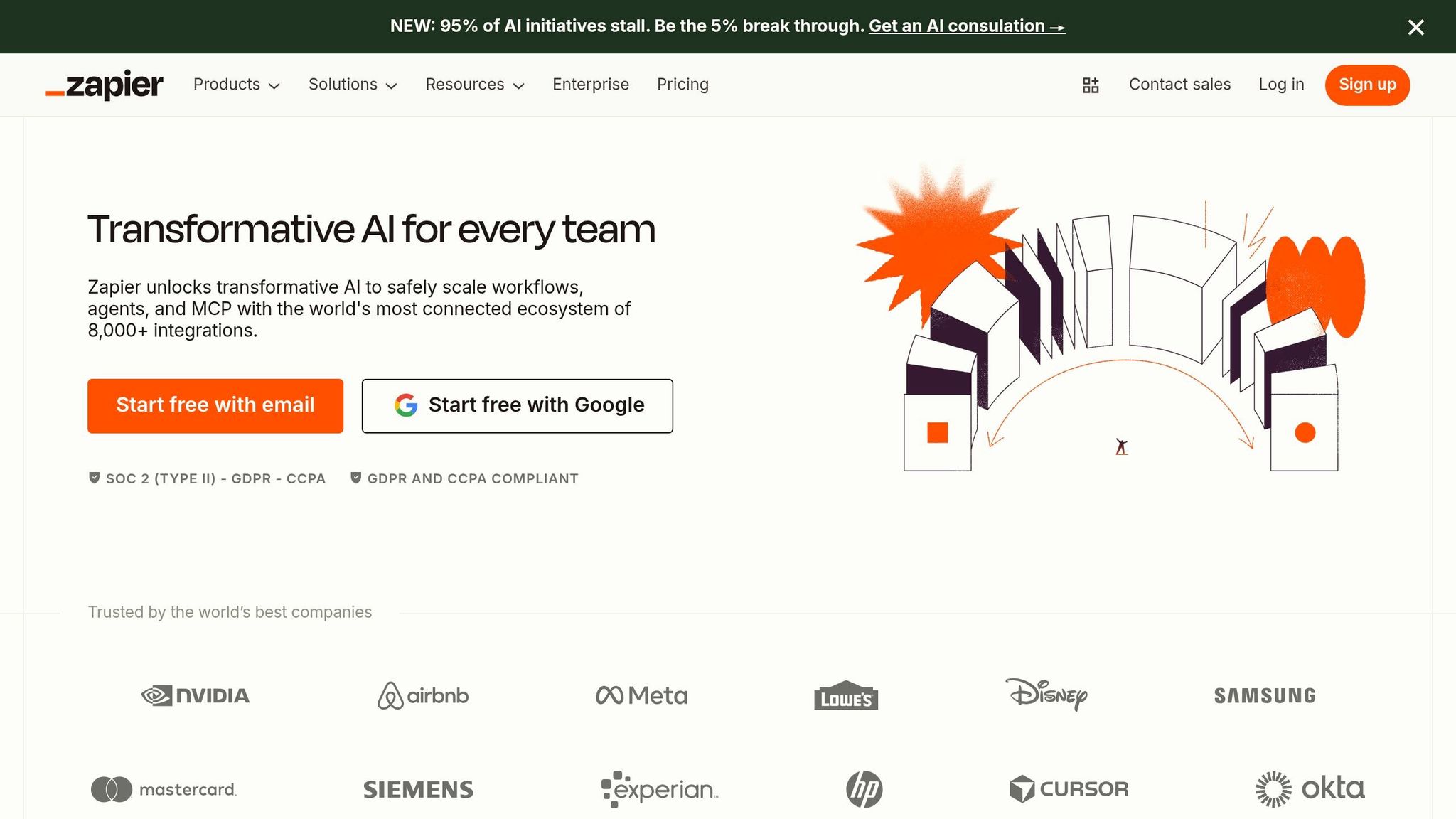
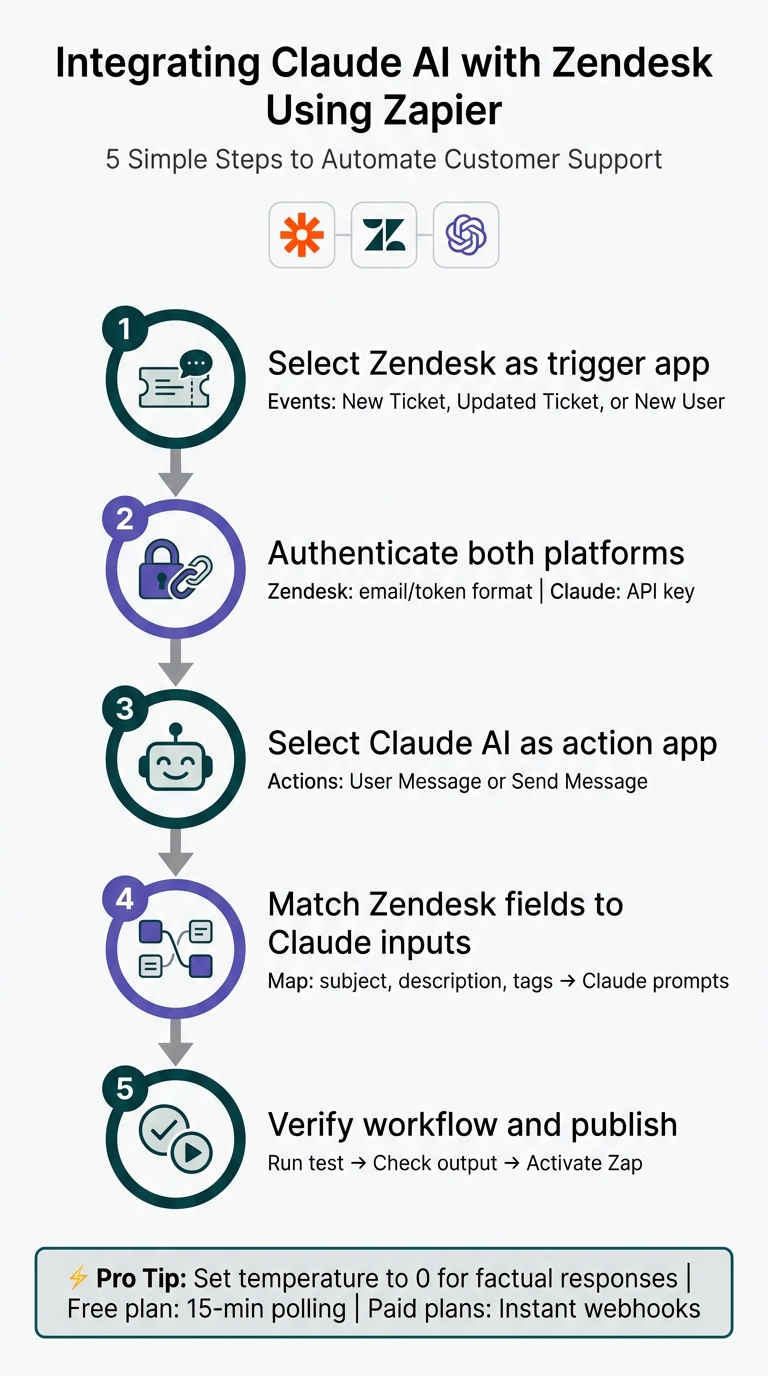
Zapier, a platform that connects over 8,000 apps, is widely used for automation. Setting up a "Zap" to link Zendesk and Claude AI can be done in just a few minutes.
Here’s how to get started:
- Choose a Trigger: Select Zendesk as the trigger app and pick an event, such as "New Ticket" or "New User."
- Authenticate Accounts: Log in to both your Zendesk and Anthropic (Claude) accounts within Zapier. Use the email/token format for Zendesk and the API key for Claude AI.
- Set the Action: Choose Claude AI as the action app and pick an action like "User Message" or "Send Message."
- Map Data: Match Zendesk ticket fields (e.g., subject, description, or tags) to Claude's input fields for customized prompts.
- Test and Activate: Run a test to ensure Claude generates accurate responses, then activate your Zap.
| Step | Action | Details |
|---|---|---|
| 1. Choose Trigger | Select Zendesk | Use events like "New Ticket" or "Updated Ticket" |
| 2. Connect Accounts | Authenticate | Use email/token for Zendesk and an API key for Claude |
| 3. Choose Action | Select Claude AI | Pick actions like "User Message" or "Send Message" |
| 4. Map Data | Match fields | Add ticket info like subject or description to Claude's prompt |
| 5. Test & Publish | Verify workflow | Ensure proper output, then activate the Zap |
Pro Tip: Use pre-built templates for tasks like "Auto-ticket creation" to save time. Additionally, when setting up Claude for customer service, adjust the temperature setting to 0 for more factual, less creative responses.
Zapier’s free plan uses 15-minute polling to check for new tickets, while paid plans offer faster polling and webhook triggers for near-instant responses.
Integration Using Albato
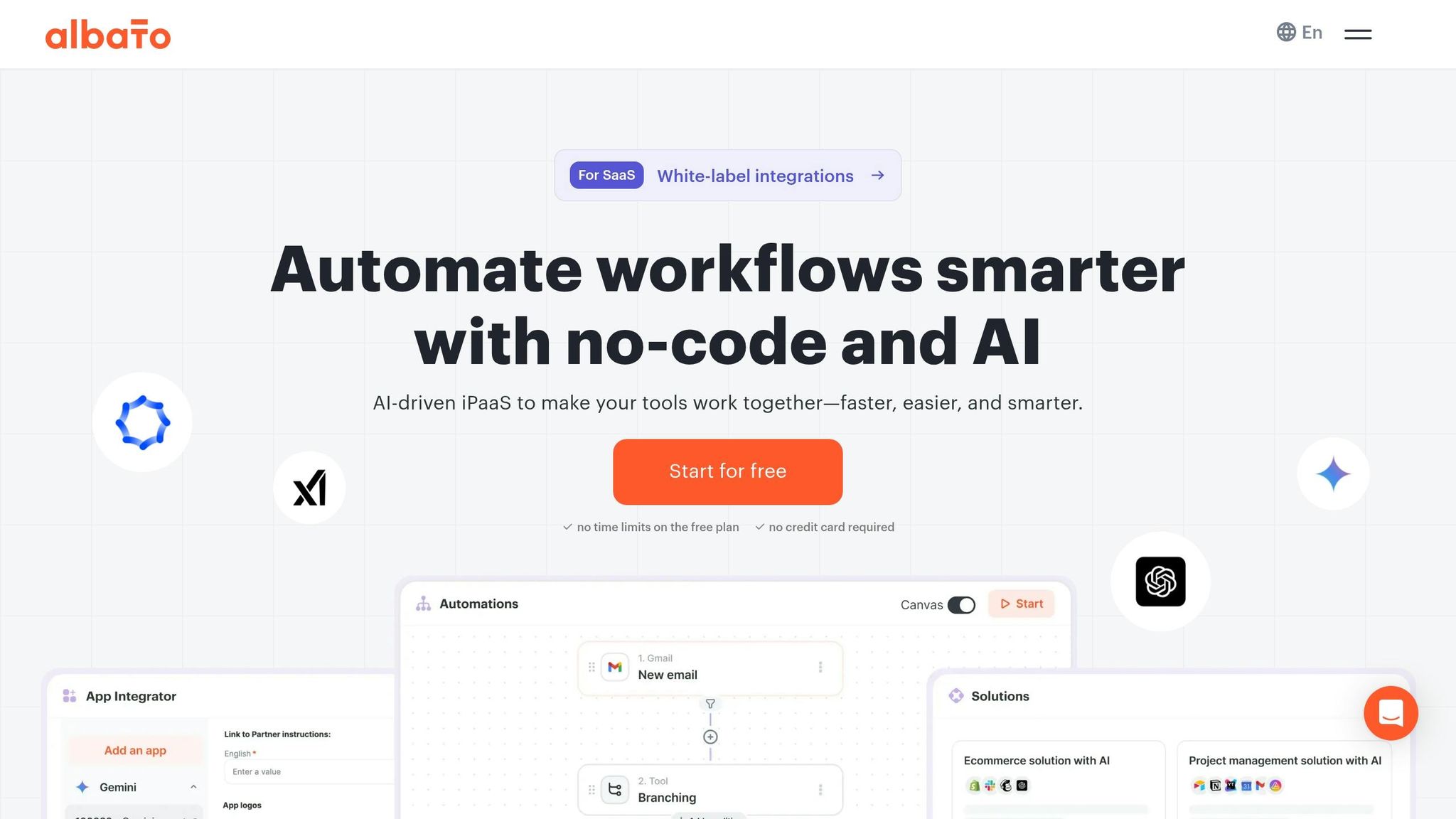
Albato offers a cost-effective alternative to Zapier, priced about 30% lower, making it ideal for small businesses and startups. With over 10,000 teams using it, Albato is a reliable solution for automating workflows.
To set up the integration:
- Select Apps: Log in to Albato and choose Zendesk and Claude AI (Anthropic) from the app list.
- Define Workflow: Set a Zendesk trigger (e.g., "Ticket Created") and link it to a Claude action (e.g., "Run a Text Prompt").
- Map Data: Use Albato’s mapping tool to match Zendesk fields to Claude’s input fields for accurate data transfer.
- Two-Way Sync: For full automation, set up separate workflows - one from Zendesk to Claude and another from Claude back to Zendesk.
Albato supports both webhook triggers for instant responses and API polling at intervals ranging from 1 to 15 minutes. It also synchronizes historical data and offers scheduled triggers for regular updates.
"Albato is the best alternative to Zapier because it's about 30% cheaper, making it perfect for small businesses, startups, and entrepreneurs." - Albato
Albato’s free plan includes 100 transactions per month, and its 7-day trial lets you explore premium features before committing. Users often highlight its clean interface and responsive customer support.
Important Note: Before activating any integration, review and prepare your Zendesk Help Center content. Claude relies on this information to generate responses, so outdated or incomplete articles could negatively impact AI performance. As Kenneth Pangan, Writer at Eesel.ai, puts it, "An integration is just a pipe. The AI's performance is only as good as the data and context it gets through that pipe."
Use Cases for Customer Support Automation
Now that your integration is live, let’s dive into how Claude AI simplifies essential support workflows. Below are some examples showing how businesses use this integration to cut down on manual tasks and speed up response times.
Automated Ticket Handling
The Claude AI Zendesk integration brings efficiency to ticket management by automating tasks like drafting, routing, and summarizing tickets. Using the Model Context Protocol (MCP), agents can issue natural language commands to create, list, and respond to tickets effortlessly.
One standout feature is the AI's ability to draft initial replies by drawing on updated help center content and macros. When a ticket comes in, Claude analyzes its details to craft contextually relevant responses, saving agents from digging through documentation for repetitive queries.
Intelligent triage is another game-changer. It categorizes tickets based on intent, sentiment, and language, then routes them to the right team automatically. For high-volume teams handling thousands of tickets daily, this time-saving feature is invaluable.
Additionally, Claude's ticket summarization feature provides a concise overview of all public comments, making agent handoffs quicker and more efficient. Instead of spending minutes piecing together context, the next team member can get up to speed in seconds.
"We handle tool reliability, observability, and security so you never have to second-guess an agent action." - Composio
Pro Tip: Review conversation transcripts every two days to spot trends in successful automated resolutions. Use these insights to refine Claude's instructions and boost its accuracy over time.
Beyond ticket management, Claude also transforms live customer interactions.
AI-Powered Live Chat
Real-time chat automation is one of Claude's strongest features in Zendesk. The AI uses your Zendesk Guide to resolve customer queries instantly and naturally.
Unlike traditional chatbots with rigid, scripted replies, Claude offers conversational interactions. You can even customize its tone - whether professional, casual, or enthusiastic - to align with your brand’s personality. This ensures the AI feels like an extension of your team.
Transparency is another plus. Claude includes links to the help center articles it references, so customers can explore topics further. If the AI can’t resolve an issue, it gathers context before passing the conversation to a human agent, ensuring a smooth handoff.
Configuration Best Practices:
- Set the Temperature parameter to zero for factual, consistent replies.
- Use Maximum Tokens to control response length, keeping answers concise and easy to read.
- Enable feedback loops by configuring the AI to ask, "Was this helpful?" after each response. This gives customers the option to escalate to a human agent if needed.
With increasingly diverse customer bases, multilingual support has become a must-have.
Multilingual Support
Claude handles queries in over 80 languages without requiring manual translation. Rather than relying on word-for-word translations, the AI understands the semantic meaning in the target language, delivering responses that feel natural and culturally appropriate.
Studies show that 75% of consumers are more likely to buy from brands offering support in their native language, and 72% are more likely to become repeat customers when such support is available. Claude’s multilingual abilities help businesses meet these expectations without the need for specialized language teams.
The AI uses multilingual Retrieval-Augmented Generation (RAG) to search your knowledge base - even if it’s entirely in English - and respond in the customer’s language. By mapping concepts across a shared semantic space, it ensures accurate and relevant answers, no matter the original language of your content.
| Language | Claude 3.5 Sonnet Performance | Relative to English |
|---|---|---|
| Spanish | 98.2% | Near-native fluency |
| French | 97.5% | Near-native fluency |
| German | 97.0% | Near-native fluency |
| Japanese | 96.8% | High fluency |
| Arabic | 97.2% | Near-native fluency |
Implementation Tip: Prompt Claude to use "idiomatic speech as if it were a native speaker" and adjust tone based on cultural norms. For instance, Japanese responses should lean formal, while American English can be more direct. Maintain a glossary of brand-specific terms to ensure consistent messaging across all languages.
Key Takeaway: These three use cases - automated ticket handling, AI-powered live chat, and multilingual support - address some of the most time-intensive parts of customer service. By automating repetitive tasks and delivering instant, accurate responses in any language, Claude AI frees up your team to focus on more complex, human-driven issues.
Optimizing and Maintaining the Integration
Setting up the integration is just the first step. To keep your automation running smoothly, regular testing, troubleshooting, and fine-tuning are essential. These practices ensure accurate AI responses and reliable performance over time.
Testing and Validation
Begin by using the "test version" of your AI agent to issue natural language commands like "create a new ticket" or "summarize this week's tickets." This confirms that Claude can handle Zendesk operations correctly. Use the "Test Production" option in your integration builder to check if POST requests to the Zendesk Ticket API are working and if ticket fields are mapped correctly.
After testing, verify in Zendesk that tickets are being updated as intended. Let the AI run for 48 hours, then review Insights to evaluate resolution rates.
-
Track the
accepted_suggested_first_replytag to see how often agents use AI-generated suggestions. - Enable "Was this helpful?" buttons so customers can provide real-time feedback on AI accuracy.
- Review conversation transcripts to identify areas where the AI might need improvement.
Testing in a sandbox environment is crucial. It allows you to experiment with tone settings and response logic without affecting live customers. Once testing confirms the system's performance, resolve any issues using the troubleshooting tips below.
Troubleshooting Common Issues
Some common challenges may arise during integration. Here's how to address them:
- Language mismatches: AI agents might generate responses in the wrong language or use American English instead of British English, even if your account is configured for the latter. As one user shared:
"We've recently experienced an issue where our expand features are expanding in American English even though our account is set up and configured to British English." – Web User lois
-
Formatting issues: Automated replies might appear as large, unformatted text blocks. Use the "reformat values" tool during testing to ensure chat transcripts sent to Zendesk tickets are readable. Adding
<br>tags can help maintain proper line breaks. -
Action failures: If the agent isn't performing actions, check your API token permissions and Basic Auth configuration in the integration headers. When using the Claude Agent SDK, set a
max_turnslimit (e.g., 10) in the agent options to avoid excessive API usage or infinite loops. - False-positive metrics: Metrics can sometimes be misleading. For example, "autoresolutions" might be counted when a user clicks "Yes", even if the issue isn’t fully resolved. As David Wexelblat explains:
"Issue not solved does not imply that the AI Agent's reply was unhelpful... The internal note should simply state that the end-user has requested additional support." – David Wexelblat
By addressing these common issues, you can ensure smoother operation and more reliable outcomes.
Ongoing Optimization
Once testing and troubleshooting are complete, focus on continuous improvements to keep your Claude AI Zendesk integration performing at its best.
The quality of your help center content significantly impacts AI effectiveness. As Zendesk documentation notes:
"The better your help center content is, the better your AI agents will be able to answer customer questions."
Regularly update your articles with clear and concise headings to improve response accuracy. Analyze conversation transcripts to spot trends in successful and unsuccessful interactions. Use this data to refine AI settings, such as tone and response logic, in the Advanced Settings panel. If you notice repetitive agent replies, implement AI-powered macro suggestions to streamline responses.
Monitor key metrics like resolution rates and response times through the Insights dashboard. Zendesk AI features can save an average of 45 seconds per ticket compared to manual triage, and categorizing incoming requests automatically can save 30 to 60 seconds per request. Use these benchmarks to measure and guide your performance improvements.
Key Takeaway: Regular testing, troubleshooting, and optimization are essential to maintaining an efficient Claude AI and Zendesk integration. By analyzing real conversation data and refining AI instructions, you can achieve greater accuracy and free up your team to focus on complex customer issues.
Conclusion
Integrating Claude AI with Zendesk reshapes customer support by streamlining processes and saving time. With intelligent triage shaving off 45 seconds per ticket and automated categorization reducing 30 to 60 seconds per request, the time savings quickly add up - especially in high-volume environments.
While the setup requires thoughtful planning, the payoff is clear. Securing API keys, updating help center content, and conducting thorough testing are critical steps. Whether you use tools like Zapier, Albato, or the Claude Agent SDK, this integration enables natural language control over ticket management and automated responses across various channels.
The results speak for themselves. For instance, DiscoverCars saved 110 hours weekly and $138,000 annually, all while improving customer satisfaction by 5 points. Their experience highlights how automation handles repetitive tasks, freeing up human agents to tackle more complex issues. These outcomes demonstrate the potential of a well-executed automation strategy.
To sustain and enhance these benefits, continuous optimization is essential. Regularly review conversation transcripts, refine AI instructions, and update your help center content to maintain accuracy. Analytics can help you boost automation rates from 30% to over 80%, ensuring your system evolves alongside your business.
Pro Tip: Start by automating high-demand tasks to quickly show ROI, then expand capabilities as your team becomes more comfortable with the system. With proper implementation and ongoing adjustments, you’ll build a scalable, efficient support system that empowers your team and improves customer experiences.
Key Takeaway: Combining Claude AI with Zendesk not only accelerates ticket resolution but also allows agents to focus on solving more nuanced problems. The secret to sustained success lies in continuous monitoring and fine-tuning, as outlined throughout this guide.
.png)