.png&w=96&q=75)

To set up an AI support agent for an online store, you name the agent, connect your knowledge base, define its identity and role, set its tone, and decide what happens when it can't answer. Then you test it and launch it in your helpdesk. With CoSupport AI Agent, connecting to your helpdesk takes about 10 minutes and needs no code.
An AI support agent answers customers on its own, using your content and store data, and hands off what it can't resolve to your team.
| Step | What you set | Tip |
|---|---|---|
| 1. Internal name | How the agent appears in your dashboard | Short and descriptive, like "Support Bot" |
| 2. Knowledge base | Website, files, FAQs, helpdesk articles and tickets | Turn on auto-sync so answers stay current |
| 3. Identity | Display name, company name, company description | Use the language you use on your site |
| 4. Role | Support, sales, or a custom role | Support for tickets, sales for pre-sale questions |
| 5. Tone of voice | Channel, style, response length, custom rules | Turn emojis off or block words with custom rules |
| 6. Escalation | What happens when the AI can't answer | Send unresolved tickets to your helpdesk |
| After setup | Test in the Playground, connect your helpdesk, launch | Ask the questions customers ask most |
Why online stores need AI agents
Online stores deal with constant pressure:
- High ticket volume, especially around sales and holidays.
- Customers in many countries and time zones.
- Shoppers who expect an answer right away.
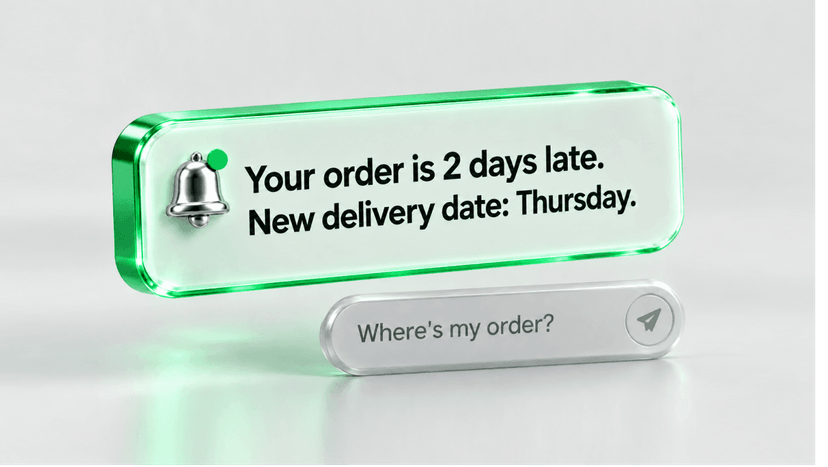
An AI agent answers instantly using verified product information, policies, and order data. CoSupport AI Agent works in 60+ supported languages (120+ compatible), connects to Shopify, Zendesk, Stripe, and other core tools, and lets you set its role, tone, and workflows.
Connected to Shopify, the agent can also act: look up an order, change or cancel it, and issue a refund when the order is eligible (CoSupport AI for Shopify). You can create, train, and launch your AI agent without touching code.
Your 6-step AI agent setup guide
Step 1: Set your AI's internal name
Give the agent a name for your dashboard. Customers won't see it.
Tip: keep it short and descriptive, such as "Support Bot" or "Sales Assistant".

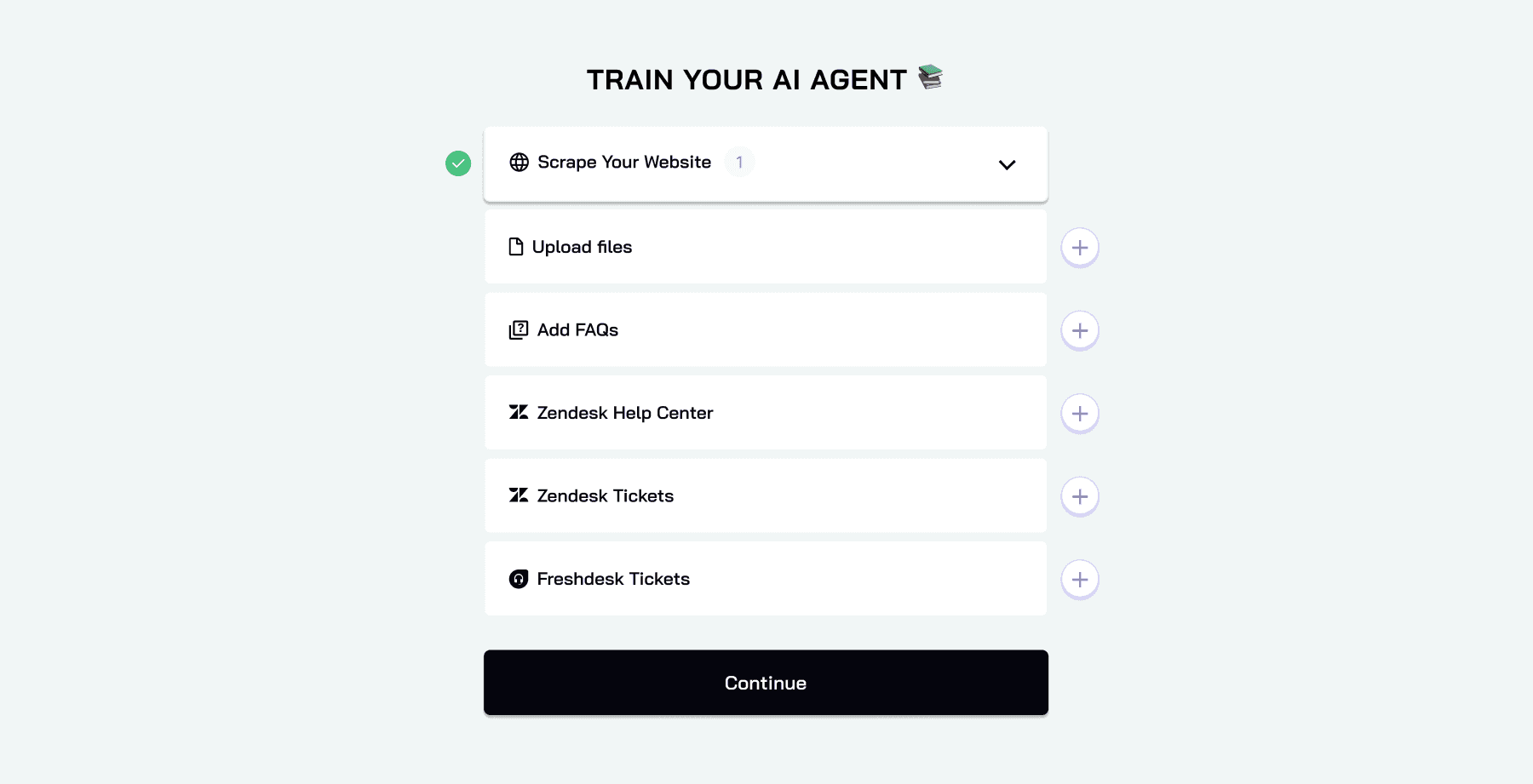
Step 2: Build the knowledge base
This is where your AI learns your business. Product and policy answers come from the sources you add here, so add them first. Our AI knowledge base setup guide covers how to prepare your content.
You can:
- Scrape your website. Enter your URL, turn on nested page syncing to cover the whole domain, and switch on auto-sync so answers update when your site changes.
- Upload files such as PDFs, documents, or spreadsheets.
- Add FAQs as standalone question-and-answer pairs.
- Connect your helpdesk, such as Zendesk Help Center articles and past Zendesk or Freshdesk tickets.
Organize sources into folders to keep things clear. You can update, move, or remove files at any time, and the AI keeps syncing with your connected sources as your store changes.
Step 3: Define your AI's identity
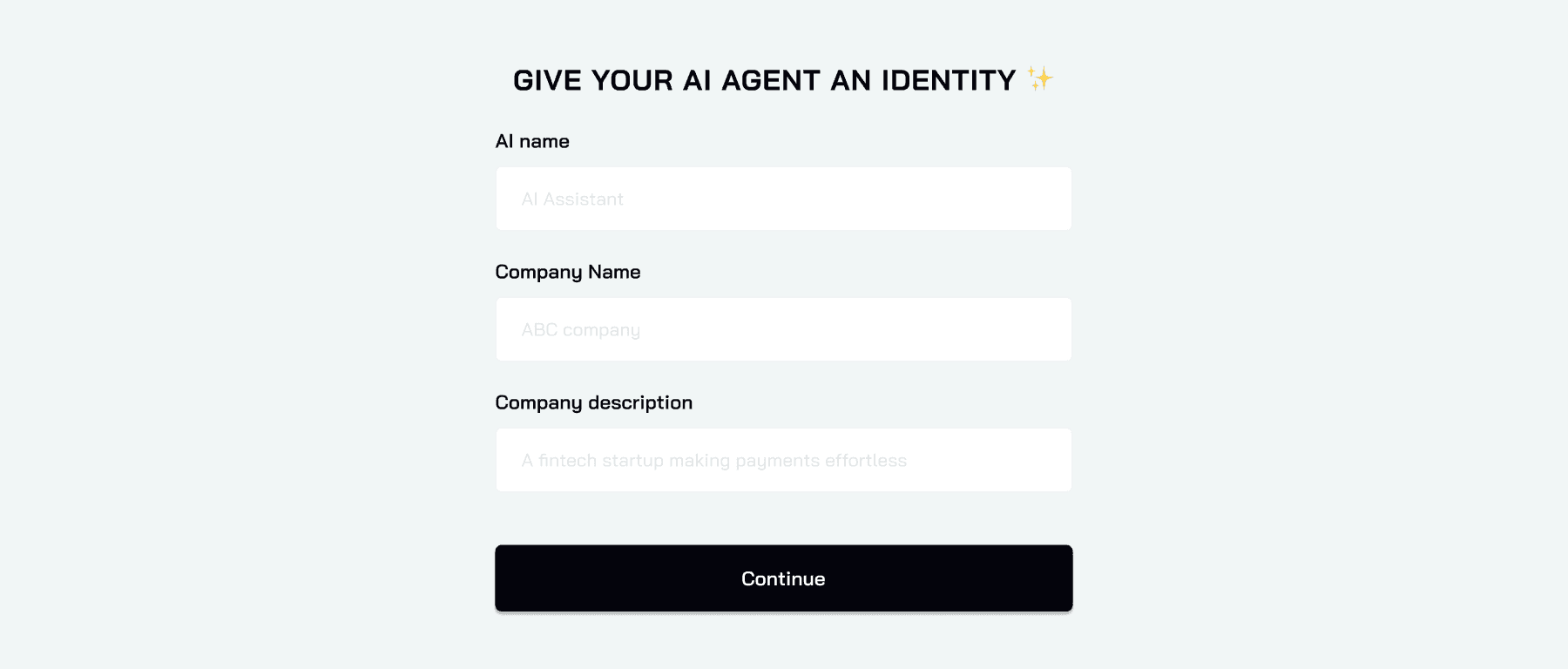
Tell the AI who it represents, so it answers in the right context. You'll provide:
- AI display name: the name customers see in chat.
- Company name: used to tailor context and phrasing.
- Company description: a short overview of what your business does.
Tip: use the same language you use on your site. It helps the AI sound like your brand.
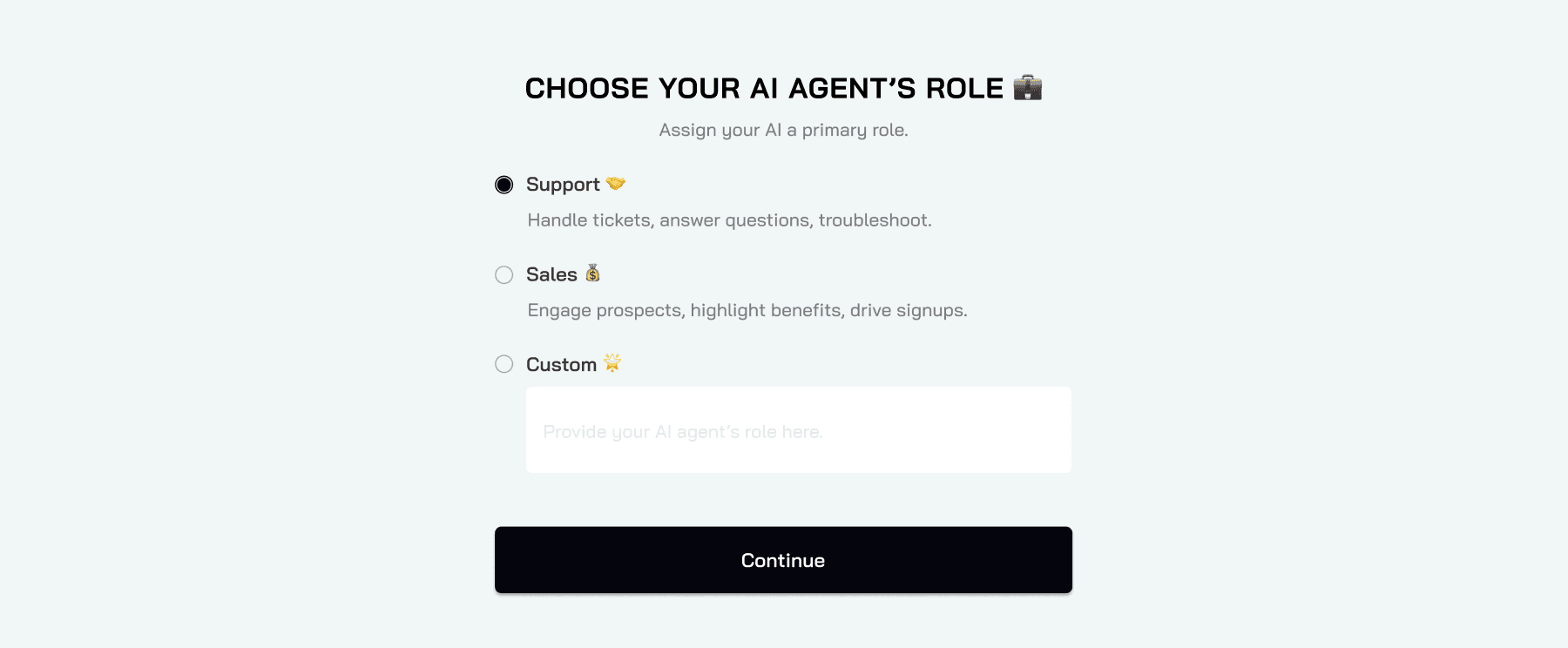
Step 4: Assign your AI's role
Decide what the AI focuses on. There are three options:
- Support: answer questions, handle tickets, and resolve issues.
- Sales: engage visitors, highlight offers, and drive conversions.
- Custom: describe a role that fits your operations.
The role shapes how the AI prioritizes, whether that's solving issues fast or helping shoppers choose.
Step 5: Set the tone of voice
Your AI should sound like your brand. Choose:
- Channel: chat or email.
- Style: friendly, professional, or casual.
- Response length: from concise to detailed.
A fashion brand might pick a casual style and standard length. A financial services company might pick a professional style and concise answers.
You can also add custom rules: turn emojis off, allow replies only in certain languages, or block words you never want the AI to use.

Step 6: Configure the escalation workflow
Decide what happens when the AI can't find an answer. By default, it escalates to your connected helpdesk, and you can change that to fit your workflow:
- Handle escalation in the helpdesk: send unresolved tickets straight to your support tool.
- Escalate to team: collect the details and log a ticket automatically.
- Forward to email: send a conversation summary to a chosen inbox.
- End conversation: close politely with a custom message.
Pick the option that matches how your team already handles unanswered questions.

After setup: test, connect, and launch
Once you finish the six steps, you land in the CoSupport Control Desk. From there you can:
- Connect the AI to Shopify, Stripe, or your helpdesk.
- Monitor performance with analytics and conversation history.
- Adjust tone, workflows, and the knowledge base.
- Add integrations or custom automations.
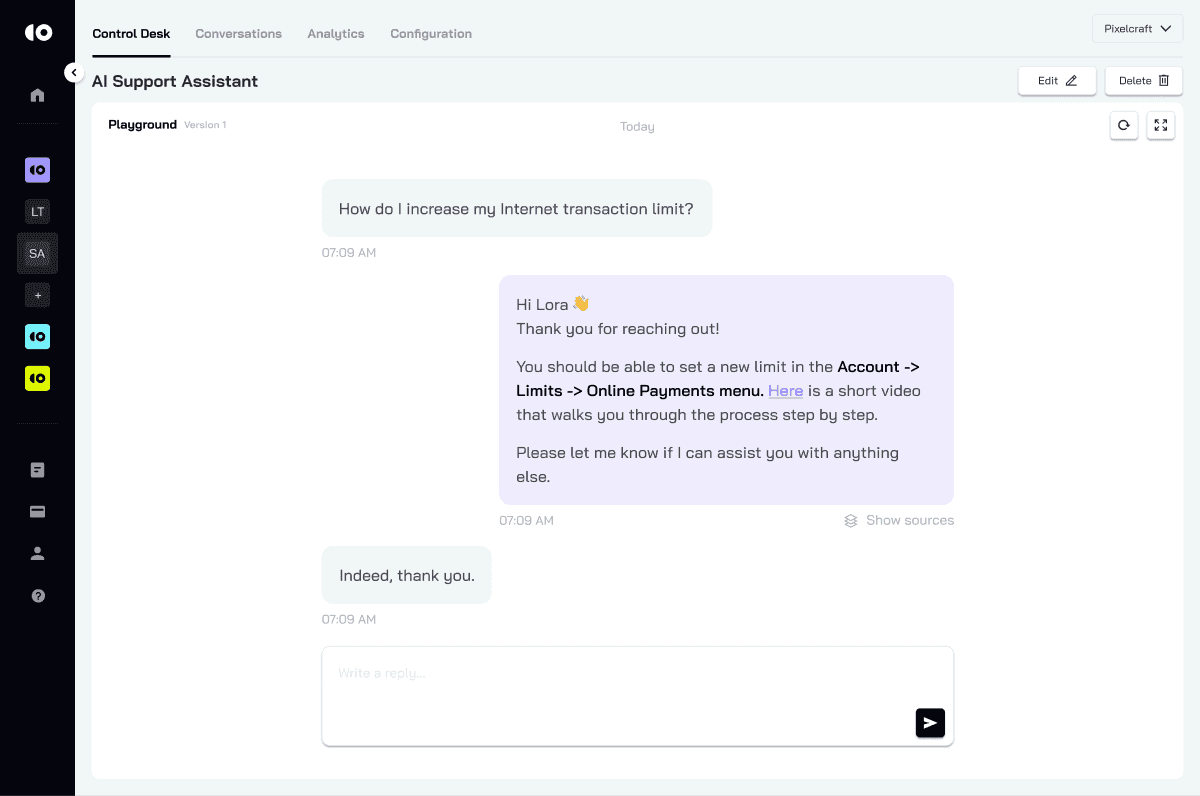
Before going live, use the Playground. You can test as soon as the knowledge base is active. Chat with the AI as a customer would, ask your most common questions, and check each answer. Every response shows the data sources it came from, so you can fix the content if an answer is off and refine tone or phrasing on the spot.
To launch, click "Launch" and pick your helpdesk. Fill in the API details it asks for, and run a quick test conversation to confirm replies arrive in your helpdesk. If your helpdesk isn't on the list, the team can set up the connection through the API on request.
You can update the agent's name, role, and knowledge base at any time from the Control Desk.
Built to grow with your store
CoSupport AI Agent adapts as your store grows. You can:
- Connect an in-house CRM, a legacy tool, or a custom backend through the API with a custom integration plan.
- Build custom workflows, from order lookups to loyalty tracking.
- Automate new tasks as your store adds products, markets, or channels.
Track what the agent resolves
When the AI handles everyday questions, your team can spend time on product, marketing, and customer relationships. Built-in analytics show how many conversations the AI resolves and where it hands off, so you can see which knowledge base gaps to fill next.
Pricing follows results: $0.50 per ticket the AI resolves, unresolved tickets are free, and the first 1,000 AI responses are free, so you can measure resolution on your own tickets before you pay.
.png)